Define the detail you need
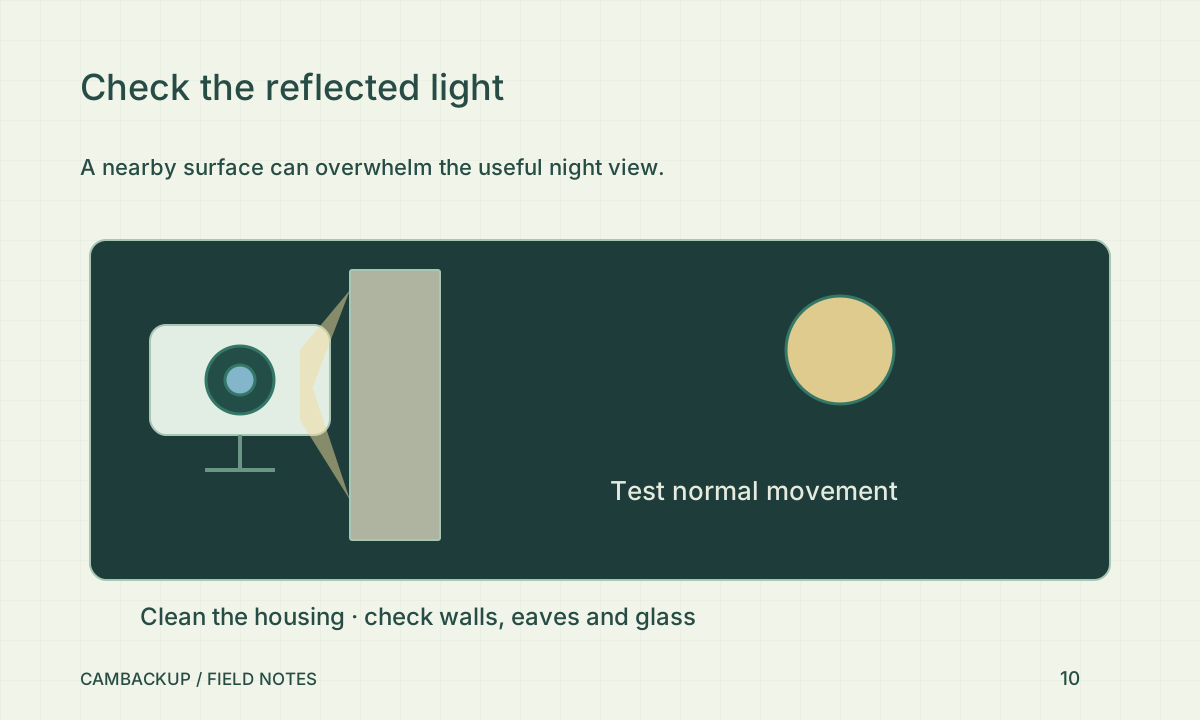
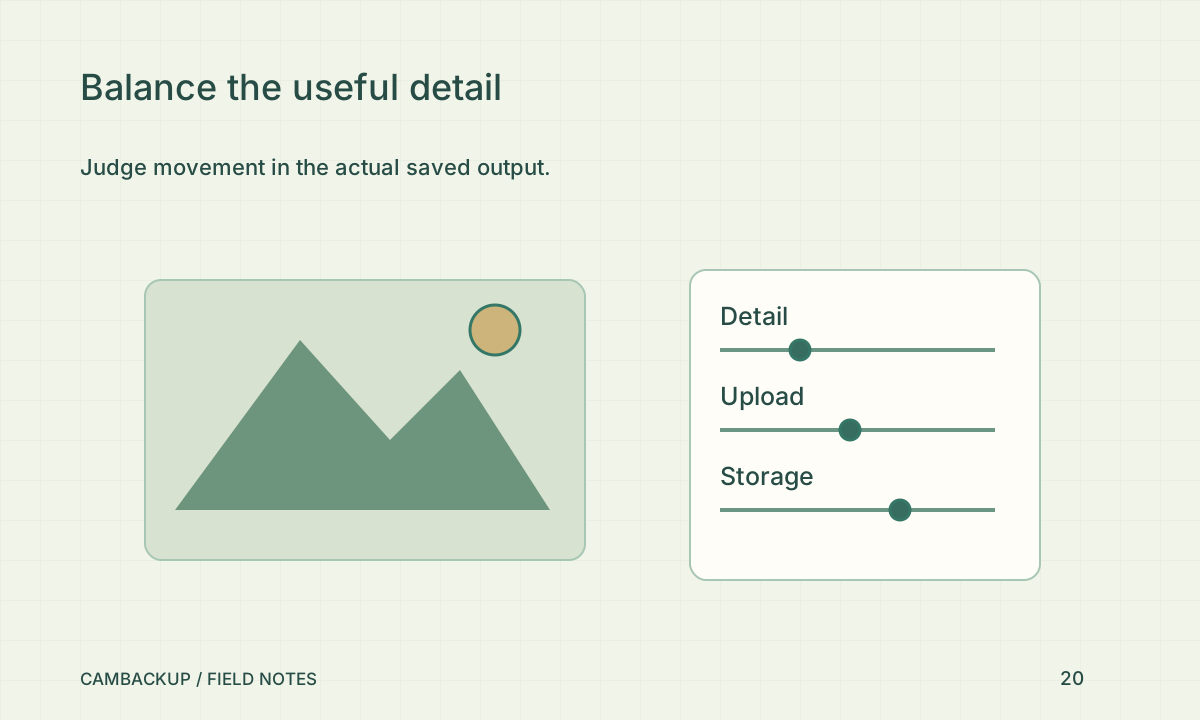
An overview of a yard and a close entrance view have different jobs. Decide what a reviewer should be able to observe at the relevant distance. Test normal movement, not only a still scene. Compression and image settings involve tradeoffs; Axis’s surveillance-compression material explains why a stream’s coding choices matter. Do not compare two settings using only file size. A smaller file is useful only if the detail needed for the task remains visible.
Check the output limits
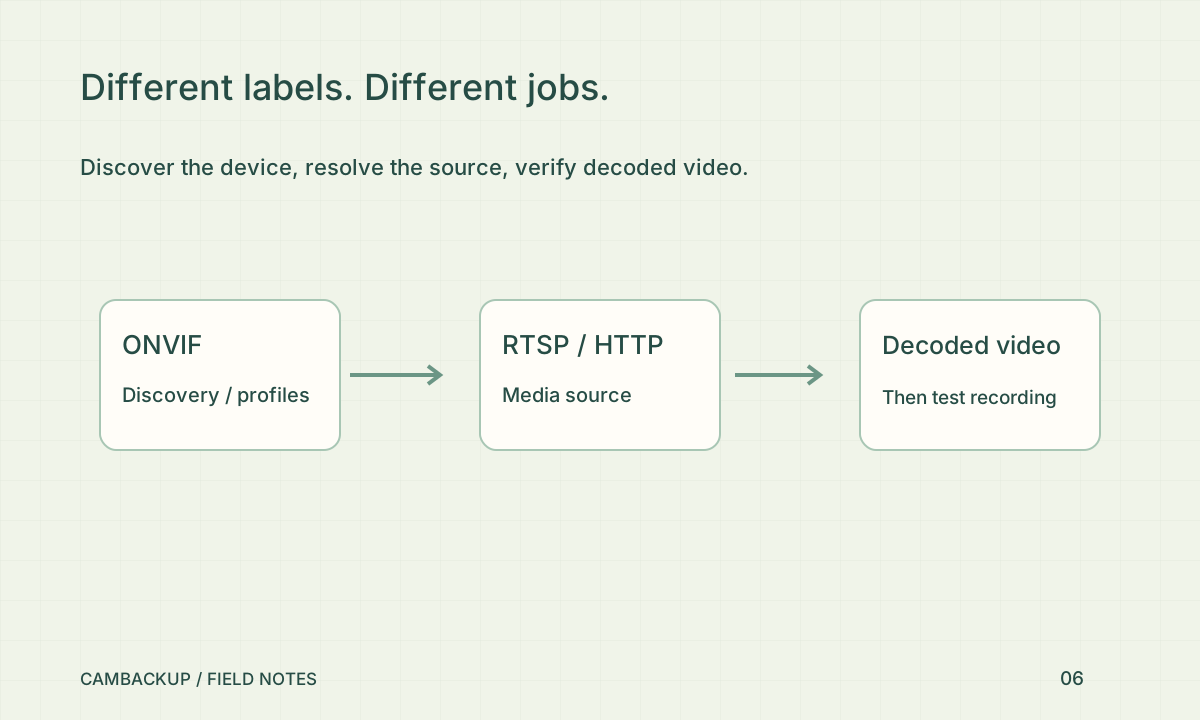
CamBackup’s recording plans include bitrate and frame-rate limits alongside storage and retention. Camera policy can further shape new output. Compare the actual exported result after a change rather than assuming the source specification is the stored specification. If you lower quality to fit a constrained upload, test at the busiest and darkest relevant times. Noise and movement can make those periods more demanding than the installation view.
Treat delay as another dimension
A browser view has capture, encoding, transport, buffering and playback stages. Axis’s latency paper discusses these contributors; a faster internet headline alone does not remove all of them. CamBackup’s browser playback uses buffered media, so do not treat it as a zero-latency control channel for safety-critical action. If a business process needs a precise event time, retain its own timestamp and correlate it with the recorded timeline rather than relying on when the live picture appeared.
Keep a repeatable comparison
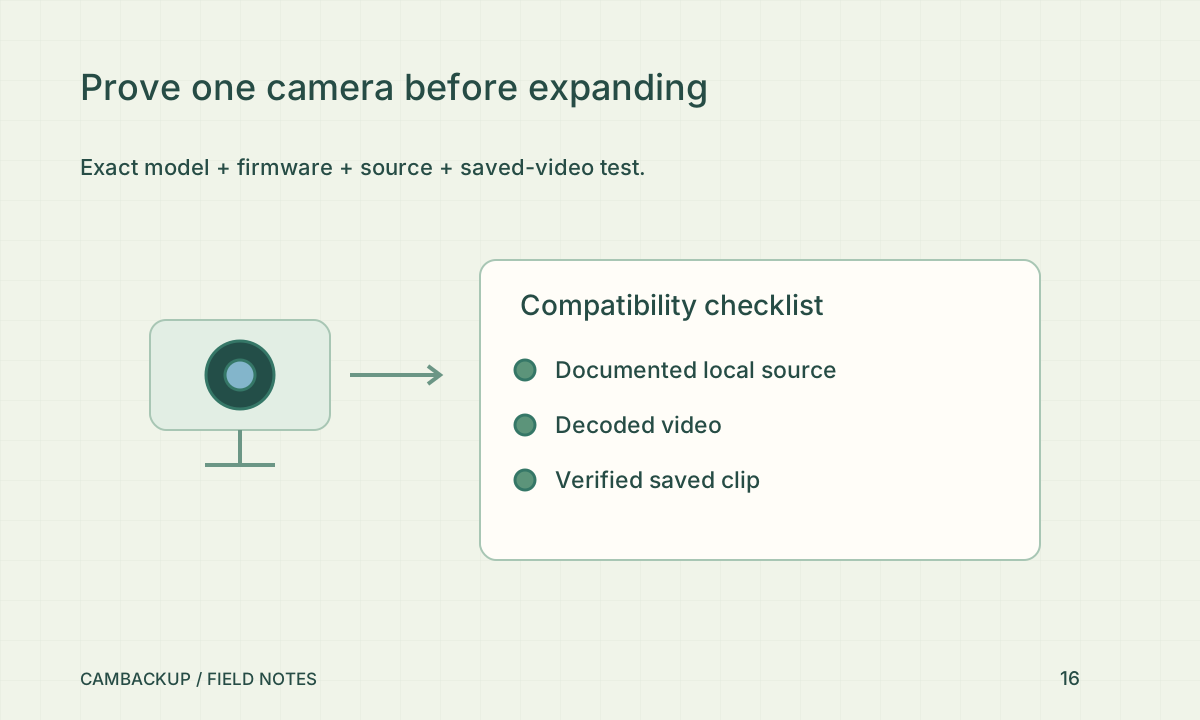
Save short before-and-after clips of the same route under similar conditions. Label the settings, date and purpose without adding private camera credentials. Compare moving detail, audio policy, visible masks, storage use and interruption behaviour. If the change makes the video less useful, revert to the known setting and investigate placement or lighting. Repeat the test after a major camera update. An evidence-based setting decision is easier to maintain than a promise that maximum quality will solve every scene.
Sources & further reading
Sources reviewed . This article is part of the guide collection published together in October 2026. CamBackup workflow advice is our own; external guidance may change. Local privacy, employment and evidence rules depend on your situation.
Follow our step-by-step setup guides, check supported features and limits, or ask a setup question.